

In the previous article, we followed our Internet traffic as far as proton0.
Linux had made its routing decision:
1.1.1.1 dev proton0 table 245447468 src 10.2.0.2This time, we’re going to continue from there.
We’ll follow that traffic through the WireGuard tunnel and examine what happens along the way. We’ll look at encryption and encapsulation, break apart the inner and outer IP packets, and capture traffic on both proton0 and our physical enp2s0 interface to see what each side of the tunnel actually looks like.
We’ll also finally come back to these two rules:
31618:  from all lookup main suppress_prefixlength 0
31619:  not from all fwmark 0xea13b2c lookup 245447468
We deliberately left them partially unexplained before because their purpose becomes much clearer once we can see the packet that WireGuard creates.
So let’s continue our investigation and see what happens after a packet enters proton0.
Looking Inside proton0
We know Linux has selected proton0 for our packet. So let’s take a closer look at what is actually behind this interface.
Since proton0 is a WireGuard interface, we can inspect it using:
$ sudo wg showOn my machine, this gives us:
interface: proton0
  public key:[redacted]
  private key: (hidden)
  listening port: 38001
  fwmark: 0xea13b2c

peer:[redacted]
  endpoint: 62.93.176.129:443
  allowed ips: 0.0.0.0/0, ::/0
  latest handshake: 18 seconds ago
  transfer: 2.22 GiB received, 172.72 MiB sent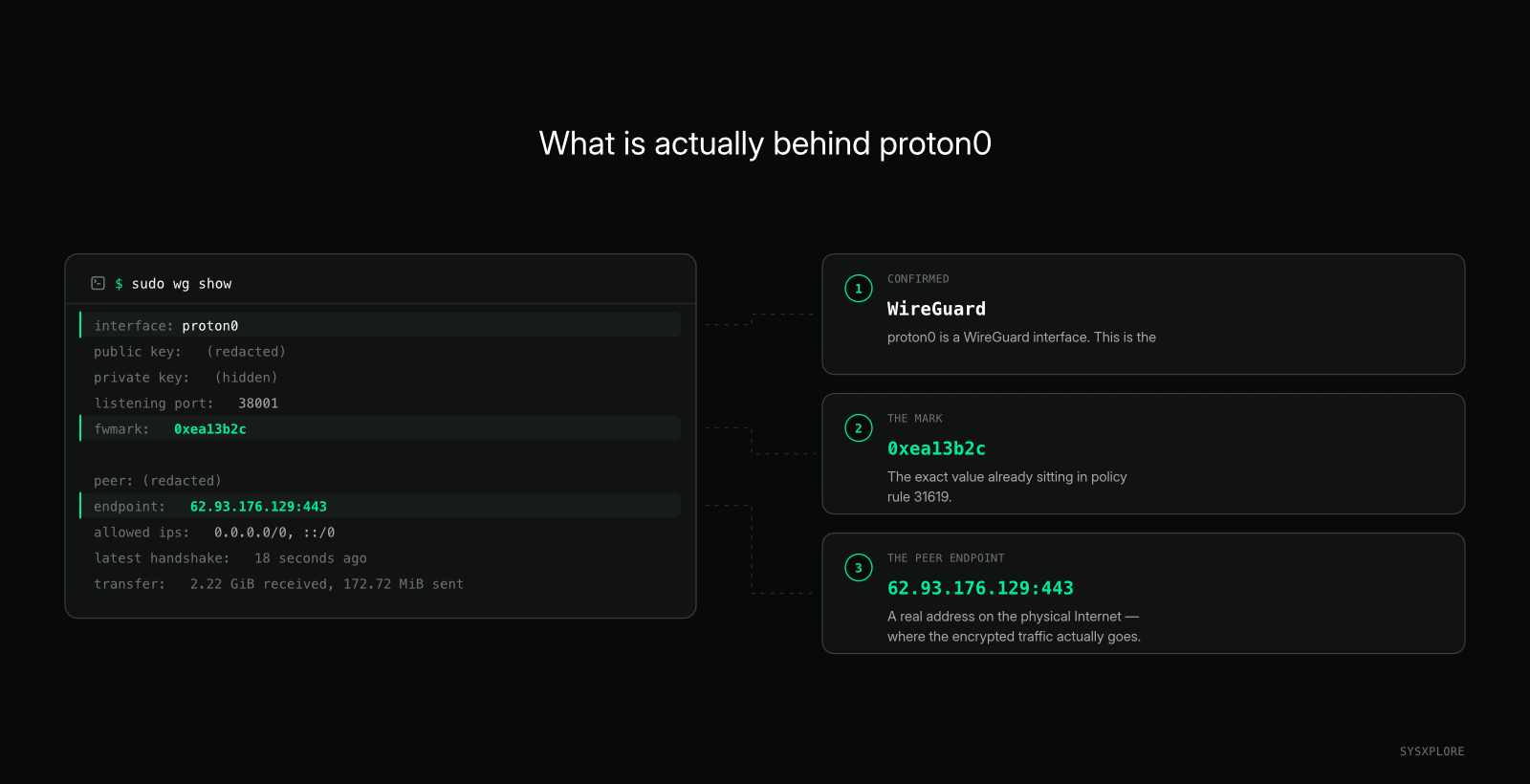
There are a few interesting things here.
First, we can see that proton0 is indeed being handled by WireGuard.
We also have a peer, and that peer has an endpoint:
endpoint: 62.93.176.129:443That gives us something we didn’t have before: an actual IP address on the physical Internet that WireGuard is communicating with.
We can also see the same fwmark that appeared in our policy-routing rules:
fwmark: 0xea13b2cRemember this value. We’re going to come back to it shortly.
For now, though, the endpoint gives us a more immediate question.
Our original packet is destined for 1.1.1.1, but WireGuard is communicating with 62.93.176.129.
So why are there suddenly two different destinations involved?
To answer that, we need to look at the packet that enters the tunnel.
A quick word From our Sponsor
This article is made possible by Proton VPN.
Proton VPN has apps for Linux, Windows, macOS, Android, iOS, and more, plus a Linux CLI for those who prefer the terminal. Its apps are open source and independently audited, and it supports multiple VPN protocols, including WireGuard, OpenVPN, and its own Stealth protocol.

Proton has also provided an exclusive discount for SYSXPLORE readers:65% off the 2-year VPN Plus plan or 55% off the 1-year VPN Plus plan when you sign up through the link below.
If the link doesn’t open, your ad blocker may be blocking it. Temporarily disable it and try again.
Now, back to where we left off.
The Packet That Enters the Tunnel
Let’s start with the packet Linux is sending into proton0.
From our earlier route lookup, Linux told us:
1.1.1.1 dev proton0 table 245447468 src 10.2.0.2So, focusing only on the IP header for now, our packet has these two important addresses:
Source:      10.2.0.2
Destination: 1.1.1.1
This is the packet our application ultimately wants to send.
At this point, 1.1.1.1 is still the destination. Connecting to the VPN hasn’t changed where the traffic is trying to go. What has changed is the path Linux uses to get it there.
We can visualize the packet entering proton0 like this:
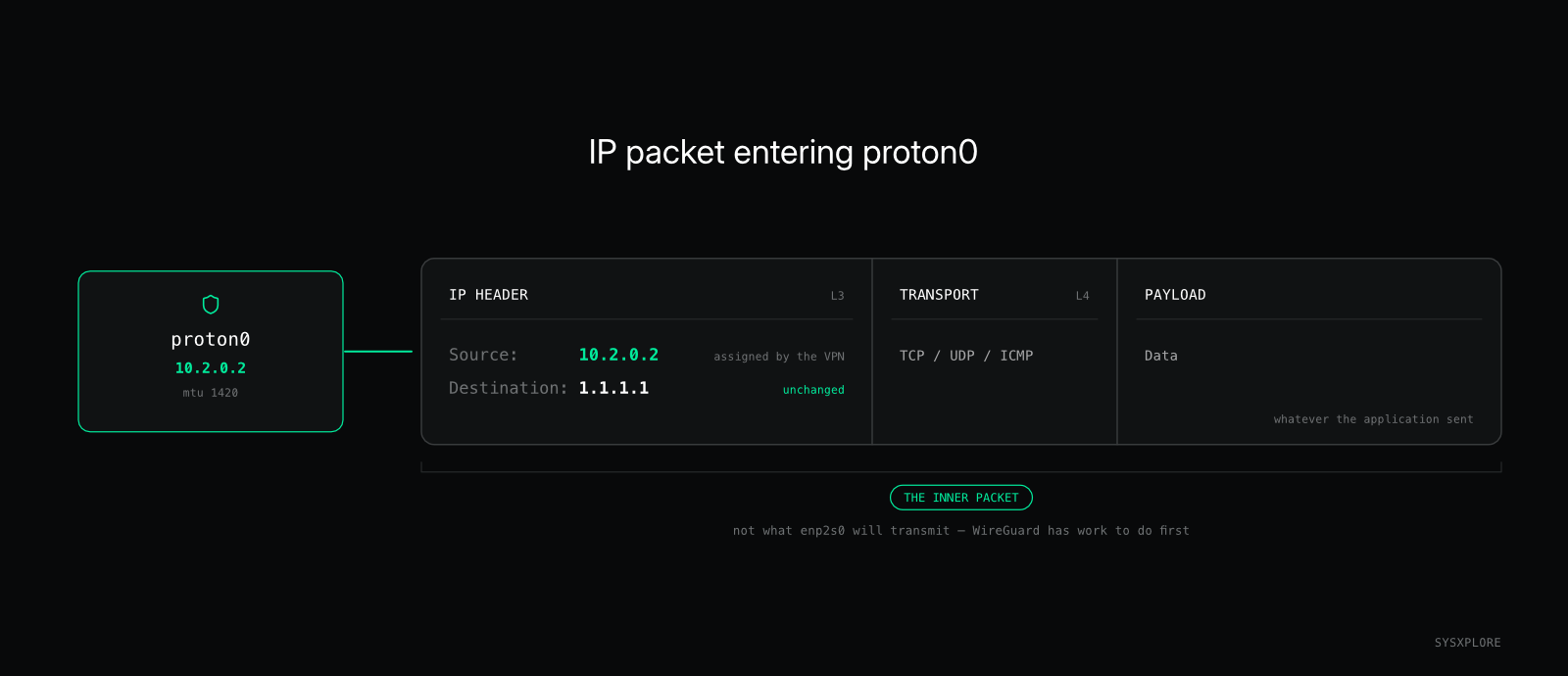
We’ll refer to this as the inner packet.
That word will become important shortly because this packet isn’t what our physical enp2s0 interface is ultimately going to transmit across the network.
WireGuard first has some work to do.
And that’s where the second destination we discovered earlier comes into the picture:
62.93.176.129To understand why, we need to look at encryption and encapsulation.
Encryption and Encapsulation
When our packet enters proton0, WireGuard needs to transport it to the VPN peer we discovered earlier:
endpoint: 62.93.176.129:443But the original packet is still:
Source:      10.2.0.2
Destination: 1.1.1.1
WireGuard handles this through two important processes: encryption and encapsulation.
First, WireGuard encrypts the original IP packet. This protects the contents of the packet, including its original IP header, so that it cannot simply be inspected while travelling across the network between our machine and the VPN endpoint.
But encryption alone doesn’t give the encrypted data a path across the Internet.
The physical network underneath the VPN still needs an IP packet it can actually route toward the WireGuard peer.
This is where encapsulation comes in.
WireGuard carries the encrypted data inside a new UDP packet, which is then carried inside a new IP packet. That new IP header contains addresses that belong to the physical network path.
For our connection, we now have something conceptually like this:
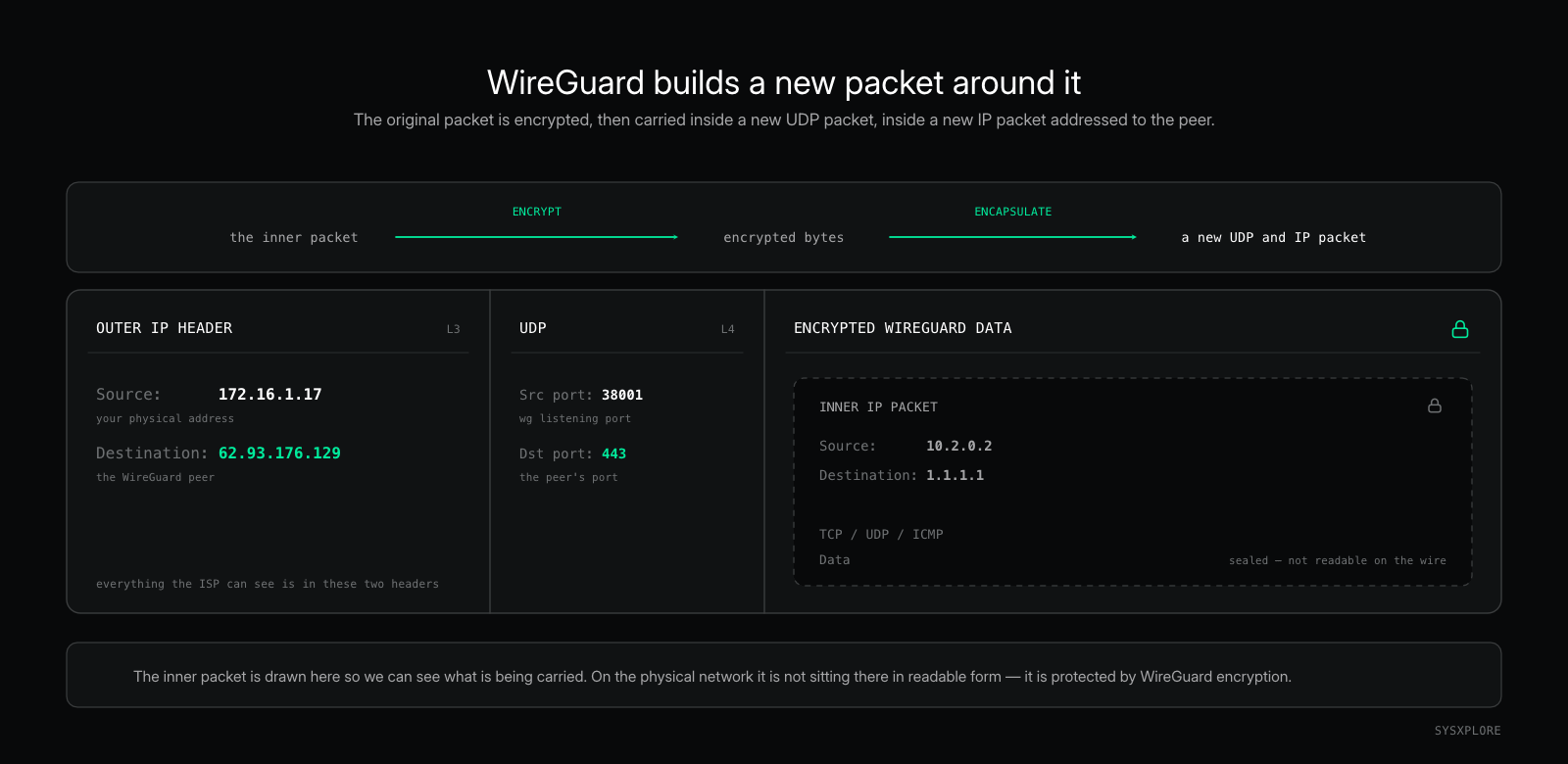
NOTE: The inner packet is shown inside the encrypted WireGuard data so we can understand what is being carried. On the physical network, that original packet isn’t sitting there in readable form inside the outer packet. It is protected by WireGuard encryption.
Now the two destinations we saw earlier start to make sense.
1.1.1.1 is the destination of the inner packet. It is where our original traffic is ultimately intended to go.
62.93.176.129 is the destination of the outer packet. It is the WireGuard endpoint that the encrypted VPN traffic needs to reach across the physical network.
In other words, we now have two network paths to think about:
Overlay:
10.2.0.2 → 1.1.1.1Underlay:
172.16.1.17 → 62.93.176.129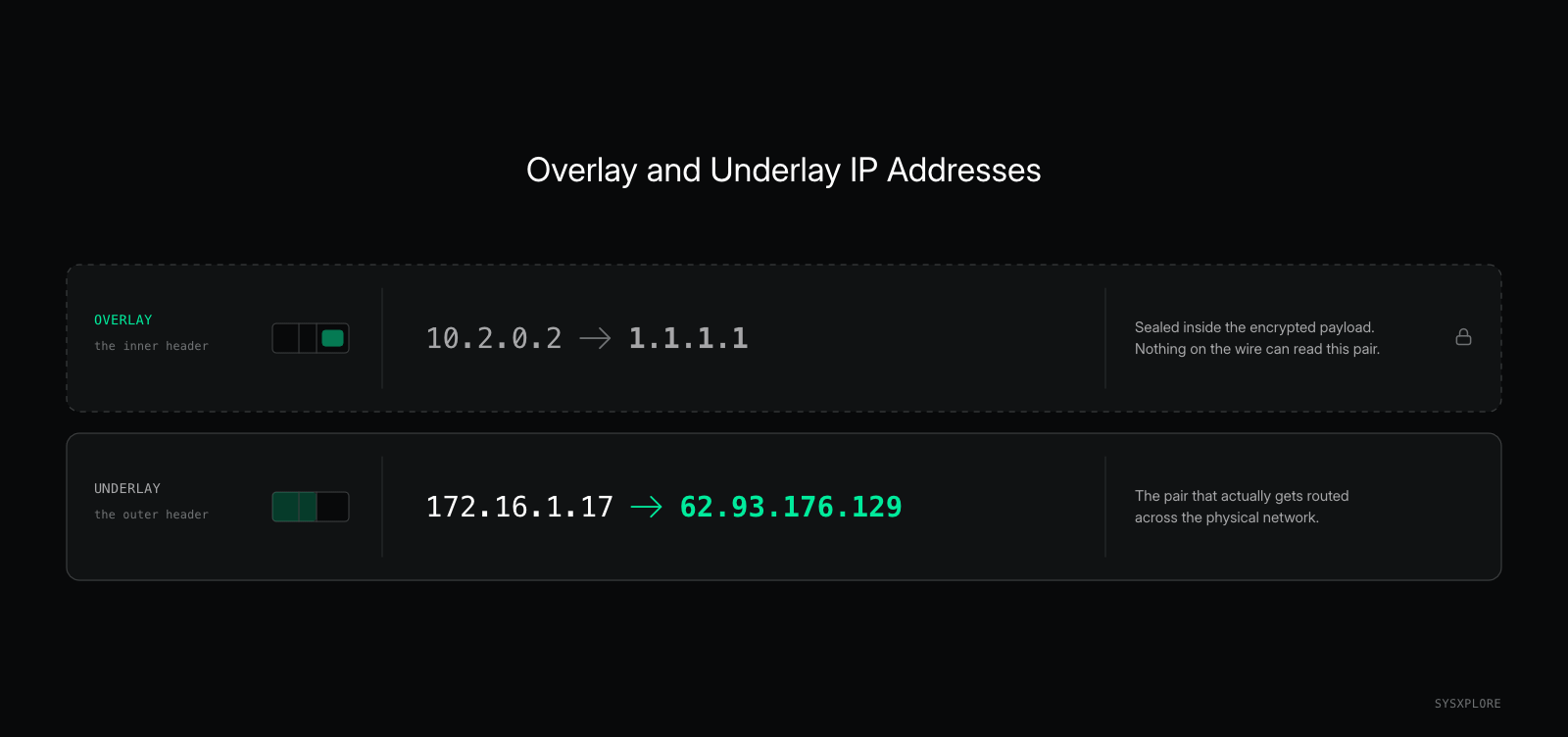
And that creates another interesting routing problem.
We already know ordinary Internet traffic destined for 1.1.1.1 gets sent into proton0.
But the outer packet destined for 62.93.176.129 needs to leave through our physical network so that it can actually reach the Proton VPN server.
So what stops Linux from sending that packet straight back into proton0 too?
Solving the Routing Recursion Problem
We ended the previous section with an interesting problem.
The outer WireGuard packet needs to reach:
62.93.176.129At this point, you might expect Linux to route that address through our physical enp2s0 interface. After all, 62.93.176.129 is the WireGuard endpoint on the physical Internet, and the VPN tunnel depends on our underlay to reach it.
That’s what I expected too.
But let’s ask Linux instead of assuming:
$ ip route get 62.93.176.129Here’s what we get:
62.93.176.129 dev proton0 table 245447468 src 10.2.0.2 uid 1000
    cache
Interesting.
Linux selects proton0.
But that’s a problem.
62.93.176.129 is the WireGuard endpoint that the tunnel itself needs to reach. If WireGuard’s outer packet were treated like our ordinary Internet traffic, Linux would send it straight back into the same tunnel:
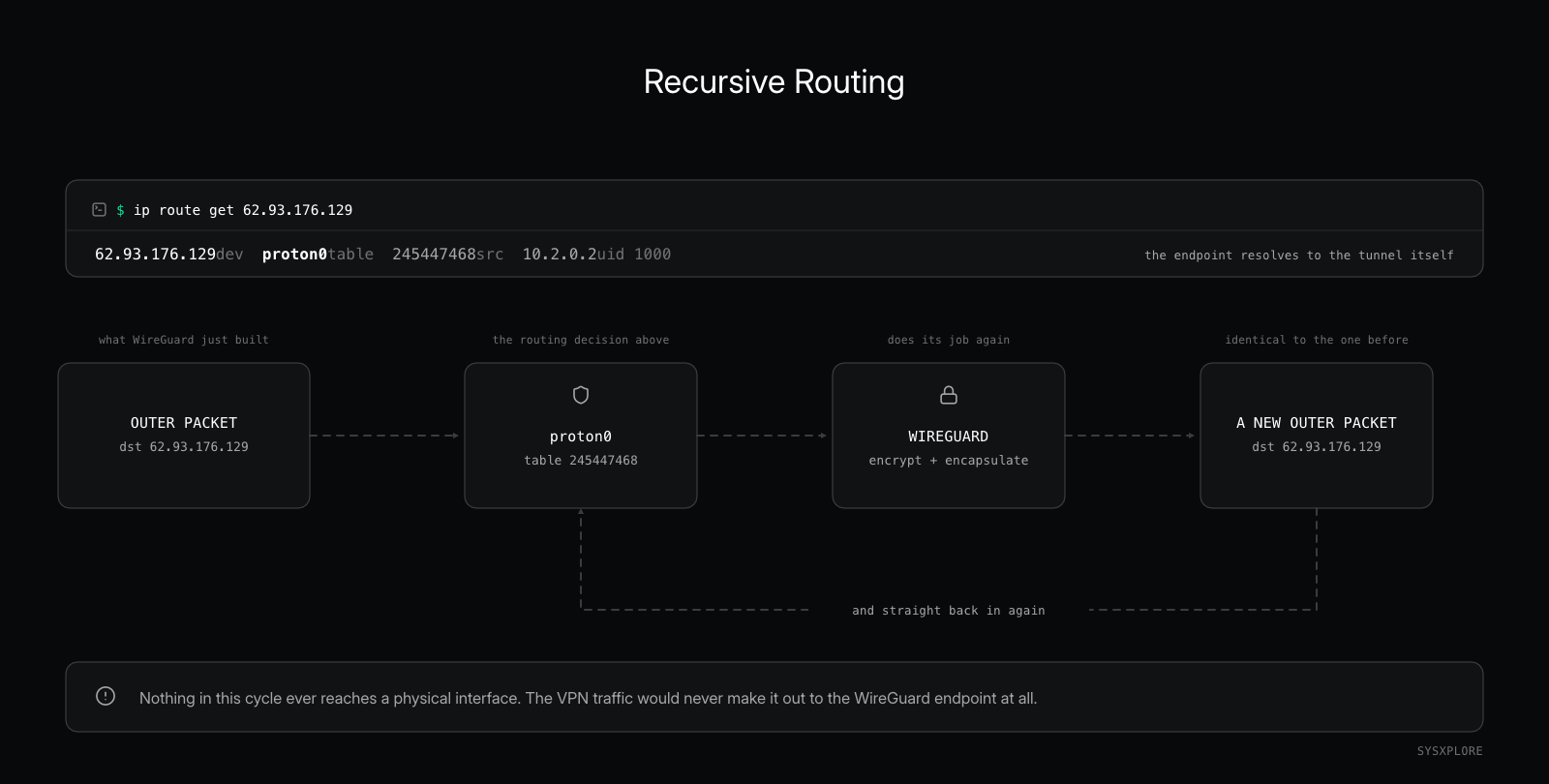
We would end up with a recursive routing loop. The packet that is supposed to carry our VPN traffic to the WireGuard endpoint would itself be routed back into the VPN, producing another outer packet that would again need to be routed, and so on.
Our VPN traffic would never make it out through the physical network to reach the WireGuard endpoint.
The tunnel needs a way out.
And this is where that fwmark we’ve been deliberately ignoring finally becomes important.
Earlier, wg show gave us:
interface: proton0
  listening port: 38001
  fwmark: 0xea13b2c
And our policy-routing rules contain that exact same value:
31618:  from all lookup main suppress_prefixlength 0
31619:  not from all fwmark 0xea13b2c lookup 245447468
WireGuard marks its own transport packets with 0xea13b2c.
We can ask Linux to perform the same route lookup again, but this time include that mark:
$ ip route get 62.93.176.129 mark 0xea13b2cNow look at what happens:
62.93.176.129 via 172.16.1.1 dev enp2s0 src 172.16.1.17 mark 0xea13b2c uid 1000
    cache
There it is.
Instead of sending the packet into proton0, Linux selects our physical Ethernet interface, enp2s0, and sends the packet toward our physical default gateway at 172.16.1.1.
The reason becomes clearer when we read this rule carefully:
31619: not from all fwmark 0xea13b2c lookup 245447468Traffic that does not carry the mark 0xea13b2c can use routing table 245447468, whose default route points into proton0.
WireGuard’s own transport traffic carries that mark, so it does not match this rule. It avoids being sent straight back into the VPN routing table.
That solves one half of the puzzle.
But there’s still another strange-looking rule sitting directly above it:
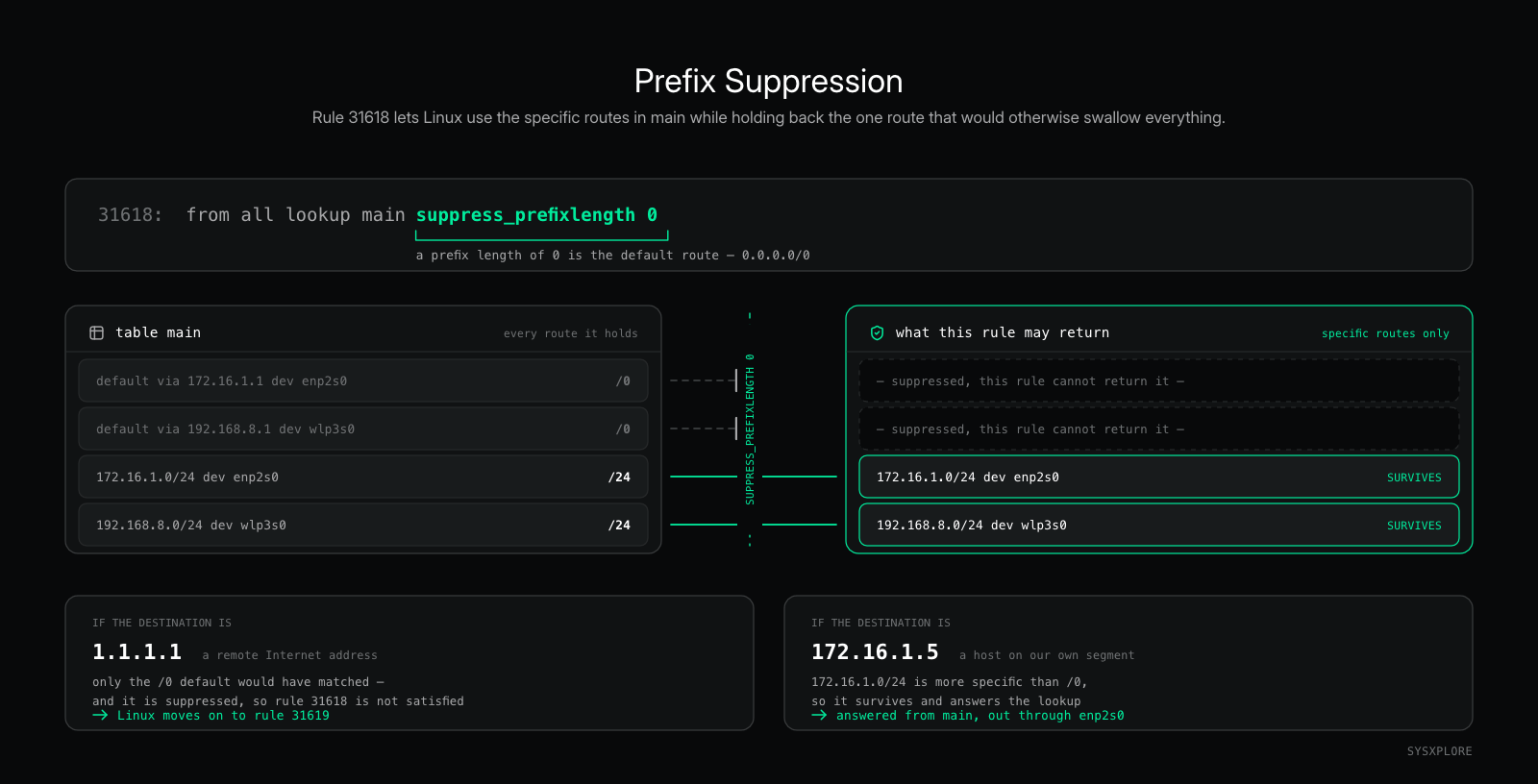
31618: from all lookup main suppress_prefixlength 0What exactly is suppress_prefixlength 0 doing, and why do we need it?
What Does suppress_prefixlength 0 Do?
Let’s bring the two policy-routing rules back one more time:
31618:  from all lookup main suppress_prefixlength 0
31619:  not from all fwmark 0xea13b2c lookup 245447468
We’ve figured out what the second rule is doing.
But Linux evaluates policy-routing rules in priority order, and 31618 comes first:
31618: from all lookup main suppress_prefixlength 0At first glance, this is a little confusing.
The rule tells Linux to look in the main routing table, which still contains our normal default route:
default via 172.16.1.1 dev enp2s0If Linux simply used that default route for ordinary Internet traffic, it would never continue to the next rule and our traffic wouldn’t be sent through proton0.
That’s where:
suppress_prefixlength 0comes in.
A prefix length of 0 refers to a default route:
0.0.0.0/0With suppress_prefixlength 0, routes with a prefix length of 0 are suppressed from the result of this lookup.
In other words, Linux can consult the main table, but the default route isn’t allowed to satisfy this particular rule.
More-specific routes can still be used.
For example, our directly connected network:
172.16.1.0/24 dev enp2s0is more specific than /0, so it isn’t suppressed.
That distinction is important.
The rule doesn’t simply tell Linux to ignore the entire main table. It lets Linux use more-specific routes from main while preventing its ordinary default route from taking over traffic that should continue through the VPN policy.
For a remote Internet destination such as 1.1.1.1, the lookup in main would otherwise fall back to:
default via 172.16.1.1 dev enp2s0But that /0 route is suppressed, so Linux continues evaluating the policy-routing rules.
It can then reach:
31619: not from all fwmark 0xea13b2c lookup 245447468For ordinary, unmarked traffic, that rule directs the lookup to table 245447468, where we already found:
default dev proton0Put the two rules together and the behavior starts to make sense.
Ordinary Internet traffic can continue past the suppressed physical default route and reach the VPN routing table.
WireGuard’s own transport traffic carries 0xea13b2c, so it doesn’t match the rule that would send it back into proton0. Since it doesn’t match any of the preceding rules, the lookup can continue down the rule set until it reaches the normal main table lookup, where the physical default route sends the packet through enp2s0.
That’s how Linux can maintain both paths at the same time: one for the traffic inside the VPN, and another for the VPN traffic that actually carries it across the physical network. The below diagram sum it all:
Watching the Packet on proton0
We’ve spent quite a bit of time reasoning about what should happen to our packet.
Now let’s actually watch it.
We’ll start on proton0, the interface Linux selected for our traffic to 1.1.1.1.
In one terminal, I started a packet capture and filtered specifically for ICMP traffic:
$ sudo tcpdump -ni proton0 icmpThen, from another terminal, I sent four ICMP echo requests to 1.1.1.1:
$ ping -c 4 1.1.1.1Here’s what appeared on proton0:
18:26:10.635453 IP 10.2.0.2 > 1.1.1.1: ICMP echo request, id 41858, seq 1, length 64
18:26:10.903398 IP 1.1.1.1 > 10.2.0.2: ICMP echo reply, id 41858, seq 1, length 64

18:26:11.636282 IP 10.2.0.2 > 1.1.1.1: ICMP echo request, id 41858, seq 2, length 64
18:26:11.902512 IP 1.1.1.1 > 10.2.0.2: ICMP echo reply, id 41858, seq 2, length 64
There it is.
The packet we have been following throughout this article is visible directly on proton0:
10.2.0.2 → 1.1.1.1And the replies travel in the opposite direction:
1.1.1.1 → 10.2.0.2Notice what we can see here.
We can see the original destination, 1.1.1.1.
We can see the VPN-assigned source address, 10.2.0.2.
We can even see that the traffic is ICMP and that these are echo requests and replies.
In other words, on proton0, we’re looking at the inner packet.
This is the packet before WireGuard carries it across the physical network.
But according to the model we built earlier, this isn’t what enp2s0 should see.
By the time the traffic reaches our physical interface, the inner packet should be protected inside WireGuard traffic destined for:
62.93.176.129So let’s move our packet capture from the overlay to the underlay and see if that’s actually what happens.
Watching the Packet on enp2s0
Now let’s move our capture from the VPN interface to the physical interface underneath it.
Earlier, when we captured traffic on proton0, we could clearly see our original packet:
10.2.0.2 > 1.1.1.1: ICMP echo requestWe could identify the source and destination addresses, the protocol, and even see that the packet was an ICMP echo request.
This time, we’ll capture the traffic leaving through our physical enp2s0 interface.
From wg show, we already know that our WireGuard endpoint is 62.93.176.129:443, so we can narrow the capture to UDP traffic involving that endpoint:
$ sudo tcpdump -nni enp2s0 'host 62.93.176.129 and udp port 443' -w /tmp/enp2s0.pcapThe -w option writes the captured packets directly to /tmp/enp2s0.pcap rather than displaying them in the terminal. This gives us a capture file that we can open in Wireshark and inspect in more detail.
And when we do that, we get a very different view from what we saw on proton0.
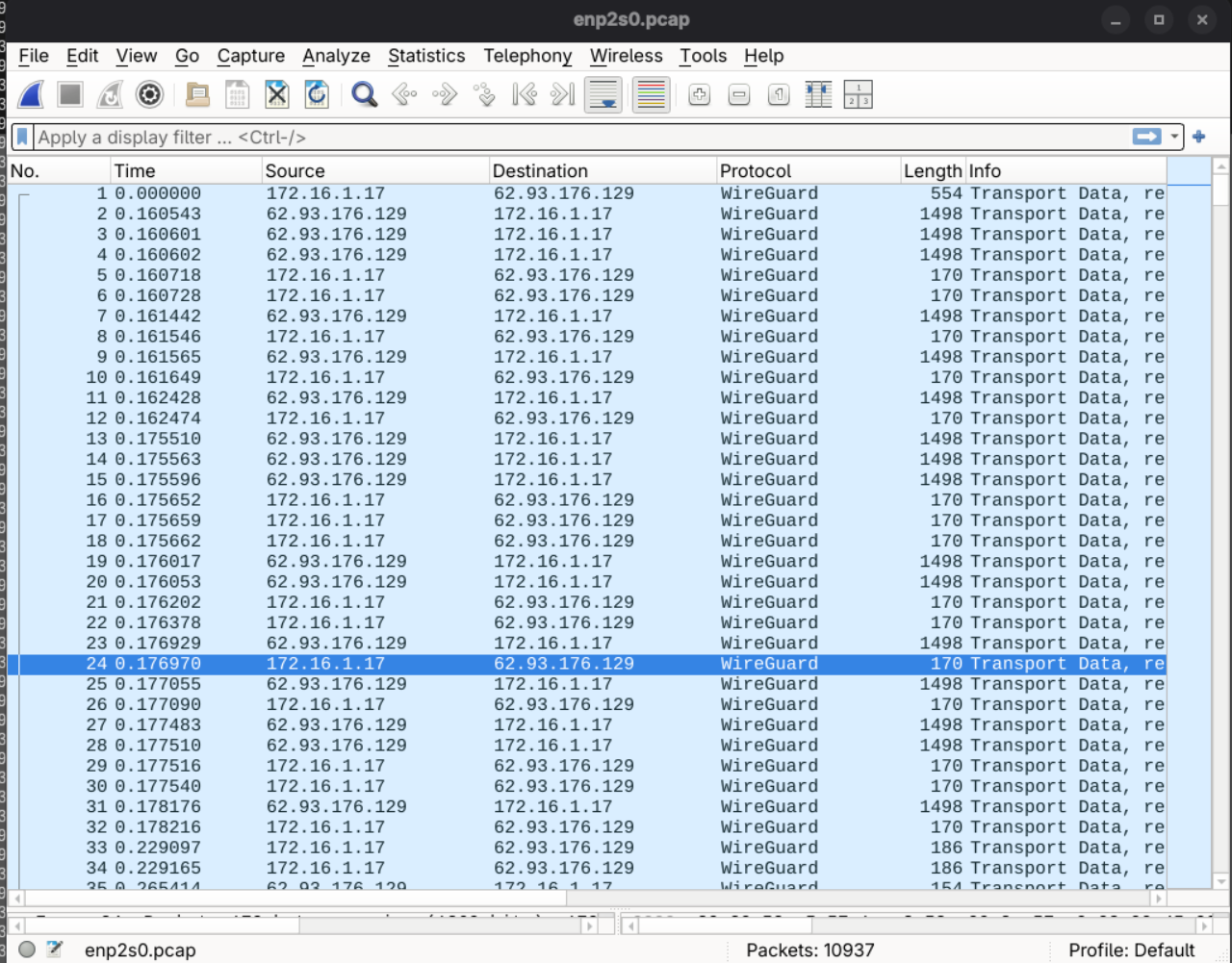
Instead of seeing 10.2.0.2 communicating with 1.1.1.1, Wireshark shows traffic between our physical IP address and the WireGuard endpoint:
Source:      172.16.1.17
Destination: 62.93.176.129
Protocol:    WireGuard
If we expand one of those packets, we can see exactly how the outer packet is constructed:
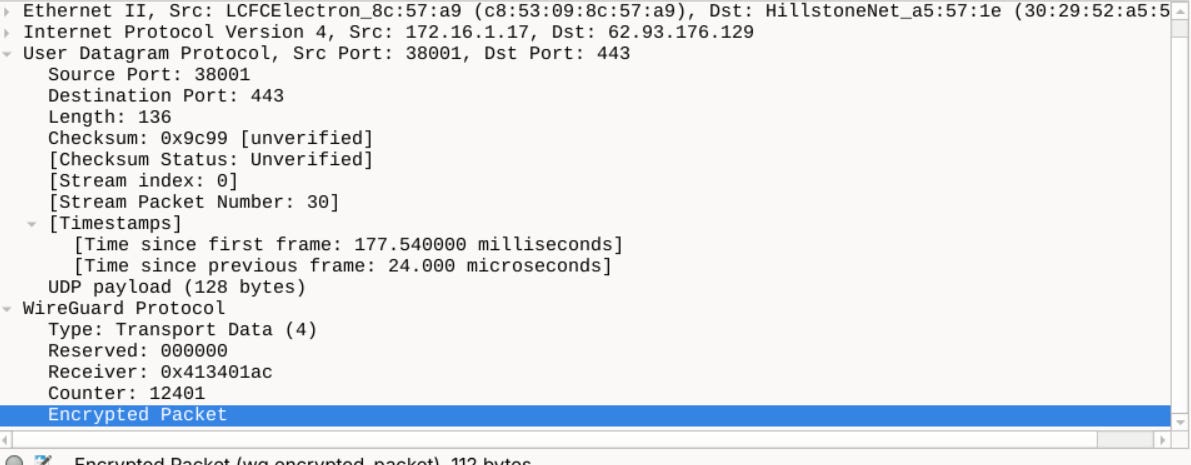
That’s the packet structure we drew earlier, now visible in an actual packet capture.
And there’s something else worth noticing.
From this side of the tunnel, we can’t tell which type of traffic is being carried inside each WireGuard packet.
Our capture contains thousands of WireGuard packets going back and forth between the same two addresses. They all appear as WireGuard transport traffic on the physical interface.
We can’t look at one of these packets and determine from the encrypted payload whether it contains an ICMP echo request, a TCP segment from a web connection, a DNS query, or some other traffic.
We also can’t see the original destination 1.1.1.1 in the outer IP header.
Those details belong to the inner packet, and that packet is now protected inside WireGuard’s encrypted transport data.
And now we have actually observed both sides of the tunnel.
On the virtual interface, we see the inner packet.
On the physical interface, we see the outer WireGuard packet carrying encrypted data.
That also tells us something important about what the network between us and the Proton VPN server can see.
What Can the ISP Actually See?
Our capture on enp2s0 also helps answer an important question:
What can the ISP actually see?
The VPN connection itself isn’t invisible. As the WireGuard traffic crosses the Internet, the ISP can still see that our public IP address is communicating with a VPN endpoint. It can also observe metadata such as packet sizes, timing, direction, and the amount of traffic being exchanged.
What it can’t directly inspect is the protected inner traffic.
In our capture on proton0, we could see the original destination 1.1.1.1 and identify the traffic as ICMP. Once that packet was encrypted and carried by WireGuard across the physical network, those details were no longer visible in the outer packet.
So a VPN doesn’t make your traffic invisible to your ISP. It changes what your ISP can see.
The ISP can see the encrypted VPN connection and its associated metadata, but it can’t directly read the protected inner packets being carried through the tunnel.
Now our encrypted packet has made it across the underlay to the Proton VPN server.
What happens when it gets there?
What Happens When the Packet Reaches the Proton VPN Server?
Our outer packet has now travelled across the physical network and reached the WireGuard endpoint at 62.93.176.129.
At the other end of the tunnel, the process we observed on our machine happens in reverse.
WireGuard processes the incoming transport packet, authenticates and decrypts it, and removes the outer UDP/IP encapsulation. What remains is the inner packet that entered proton0 earlier:
Source:      10.2.0.2
Destination: 1.1.1.1
But 10.2.0.2 is an internal VPN address. It isn’t the address that 1.1.1.1 will ultimately see.
Proton’s WireGuard implementation uses double NAT to handle this. Proton documents this as a two-stage process: the first NAT translates 10.2.0.2 to a random but unique internal IP address assigned to the VPN session. The second NAT then translates that session address to the VPN server’s public IP address before the traffic is sent toward its destination.
Conceptually:
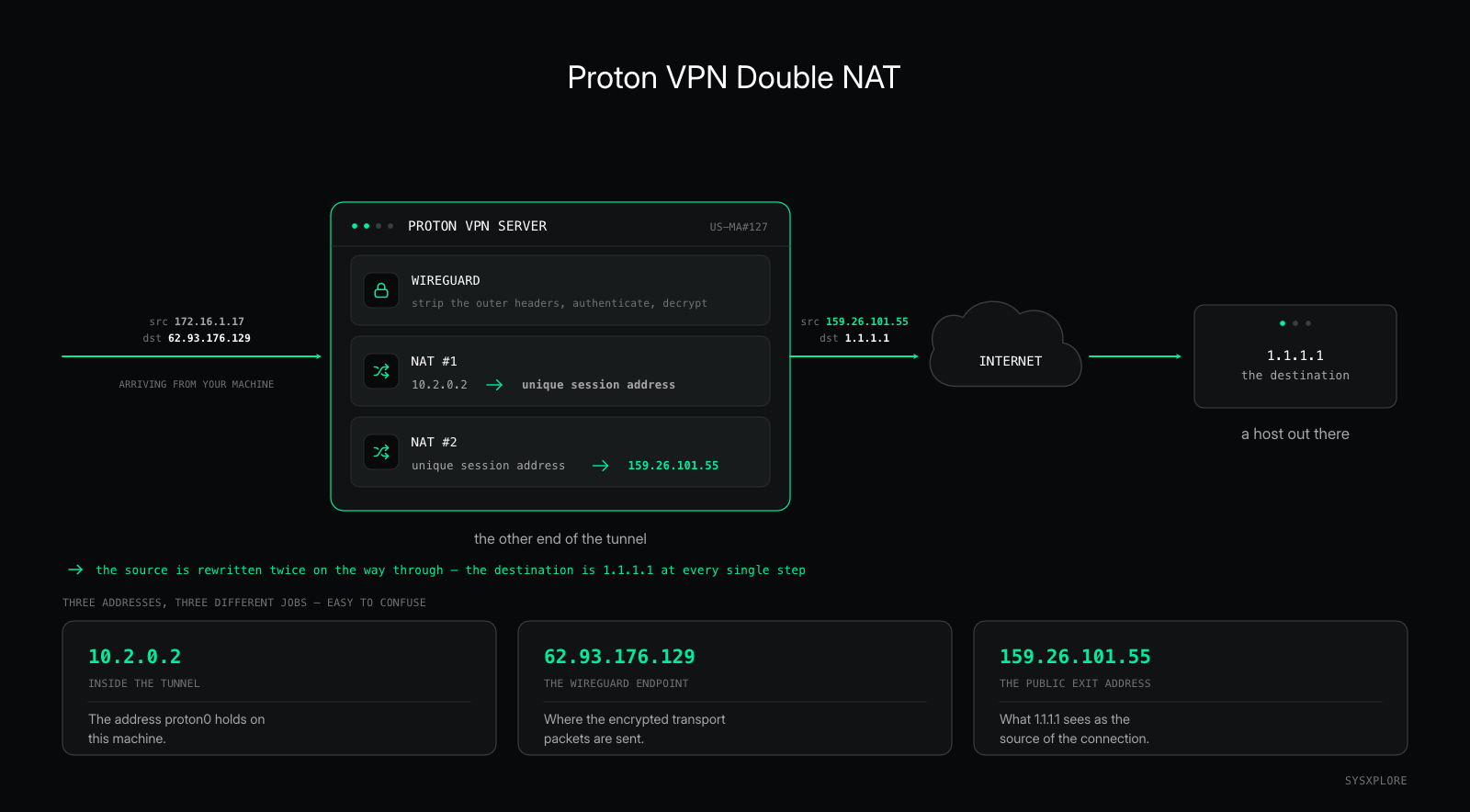
In our connection, we’ve actually encountered two different public Proton IP addresses that serve different purposes.
The first is:
62.93.176.129This is the WireGuard endpoint. It’s the public address our machine sends the encrypted WireGuard transport traffic to.
The Proton CLI also gave us:
159.26.101.55This is the public VPN address for our connection. It’s the address presented to destinations on the Internet after our traffic leaves Proton’s VPN infrastructure.
So these addresses shouldn’t be confused:
10.2.0.2        → address inside our VPN tunnel
62.93.176.129   → public WireGuard endpoint
159.26.101.55   → public VPN/exit address
The original destination is still 1.1.1.1. What changes before the packet is sent onward is its source address.
Putting everything together conceptually:
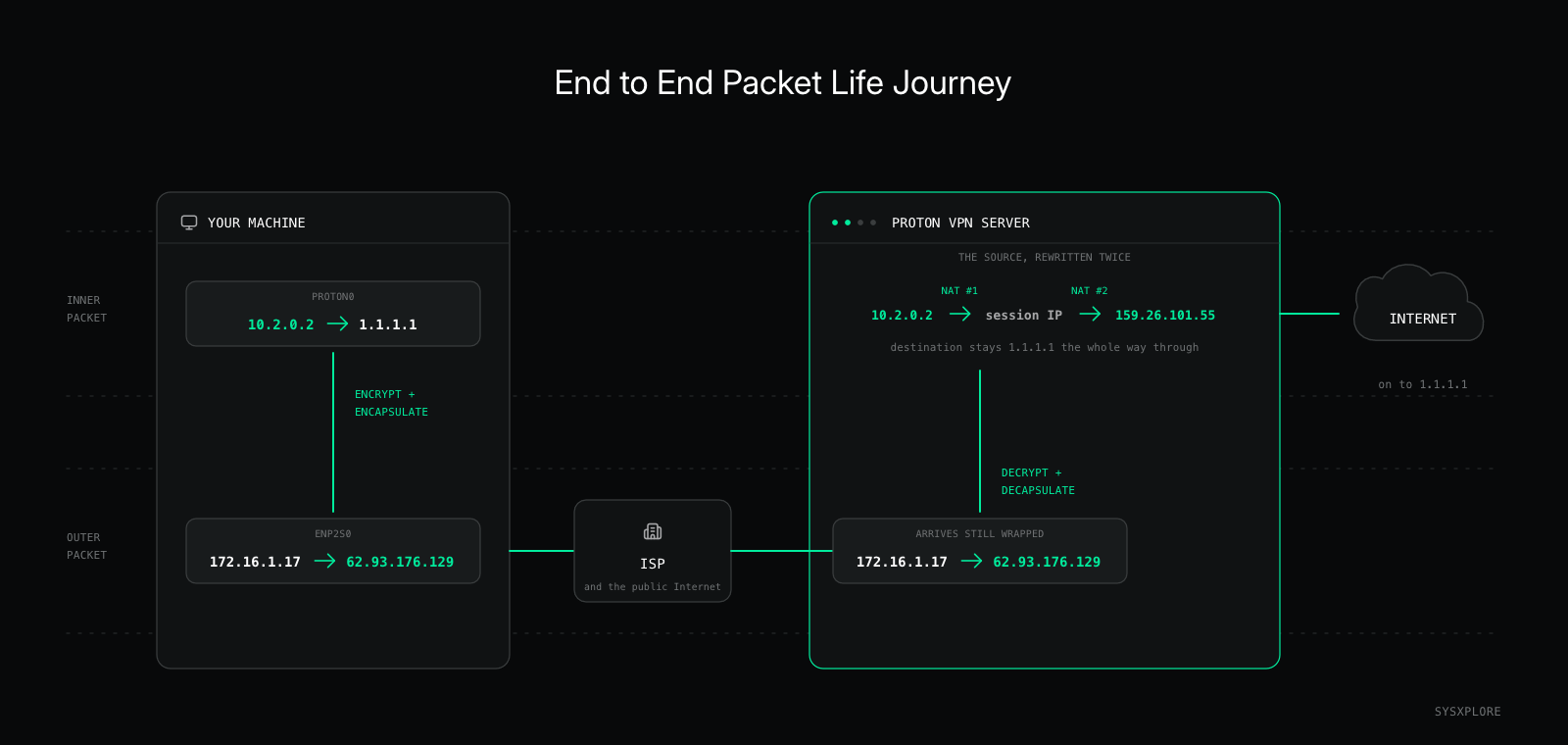
The packet can now continue toward 1.1.1.1, but as far as the destination is concerned, the connection is coming from Proton’s public VPN address rather than our original Internet connection.
And once 1.1.1.1 replies, the entire journey has to happen again in reverse.
Wrapping Up
We started with a simple question: what actually happens after Linux sends a packet into proton0?
By following that packet, we saw how WireGuard creates an encrypted path across the physical network underneath it, why Linux needs separate routing behavior for the inner and outer traffic, and what changes as the packet moves from our machine to the Proton VPN server.
More importantly, we didn’t just describe the tunnel. We watched it happen using Linux’s routing tables, policy rules, WireGuard state, and packet captures.
But everything we’ve seen depends on that tunnel remaining available.
What happens if the VPN suddenly goes down?
That’s what we’ll investigate next when we look at how VPN kill switches actually work in Linux.
Until then, keep exploring and subscribe to get notified when new guides are published.