

In the previous part, we walked through local port forwarding and saw how an SSH tunnel can give your machine a private path into a service running on the remote side.
In this part, we’ll flip the direction. Instead of pulling traffic toward the client, we’ll look at remote port forwarding, where the remote machine opens a port and sends traffic back to your local system.
Understanding Remote Port Forwarding
Remote port forwarding works in the opposite direction of local forwarding. Instead of opening a port on your laptop and sending traffic into a remote network, you open a port on the remote machine and send traffic back to your laptop. This is useful when your laptop is running a service that the remote side cannot reach directly, maybe because you’re behind NAT, a firewall, or you simply don’t have a public IP.
A classic example is when you’re developing a web application locally and want someone else to access it. Take James, for instance. He’s been building a website on his laptop and wants to show it to his colleague Kay. The problem? James is sitting behind a private network with no public IP, and incoming connections to his laptop are blocked. Kay has no direct way of reaching James’s machine, and James doesn’t have the time or desire to deploy the site to a public server just for a quick preview.
What James can do, however, is spin up a temporary server on the cloud, something both of them can reach, and use SSH remote port forwarding to expose his local website through that server. The cloud VM opens a port, and anything sent to that port is quietly tunneled back to James’s laptop. From Kay’s perspective, the website looks like it’s being served from the cloud, even though it’s actually running on James’s machine at home. This will make more sense in the lab, so let’s jump right another lab.
Lab Setup
So for this I have setup 3 machines:
james-lap (192.168.70.10) - James’s laptop where the web application is running locally on port 80.
aws-pub-instance (192.168.70.10 and 192.168.80.20) - A cloud VM that both James and Kay can access. This machine will act as the SSH server for remote port forwarding.
kay-pc (192.168.80.10) - Kay’s computer from which she wants to access James’s local web application.
Notice the aws-pub-instance has two network interfaces, one connected to James’s network (192.168.70.0/24) and the other connected to Kay’s network (192.168.80.0/24). This setup allows both James and Kay to reach the aws-pub-instance. Normally, a cloud VM would have a normally single public IP address, but for the sake of this lab, we are simulating the cloud environment using private IPs.
NOTE:
If you skipped the first part or haven’t set up the lab yet, the GitHub repository includes the full setup so you can start from here.
Verifying Connectivity
Both kay and james cannot directly reach each other due to network restrictions, but they can both access the aws-pub-instance. which we can confirm by pinging from both sides: From james-lap:
$ vagrant ssh james-lap
$ ping aws-pub-instance
$ ping kay-pc
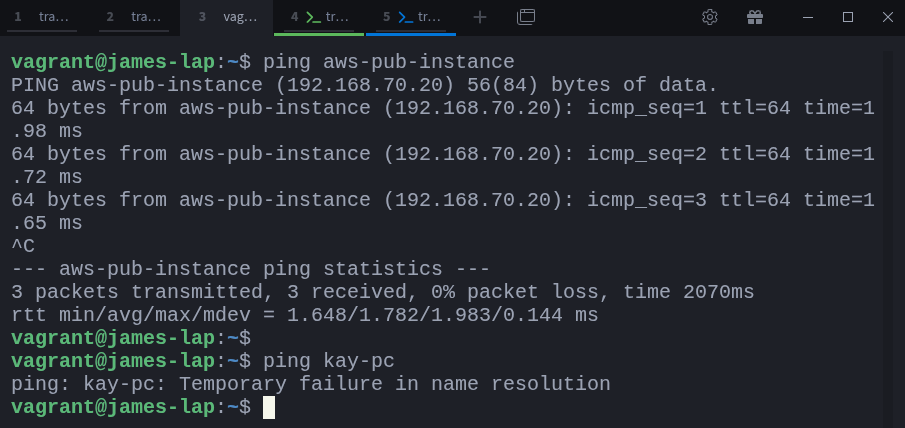
from kay-pc:
$ vagrant ssh kay-pc
$ ping aws-pub-instance
$ ping james-lap
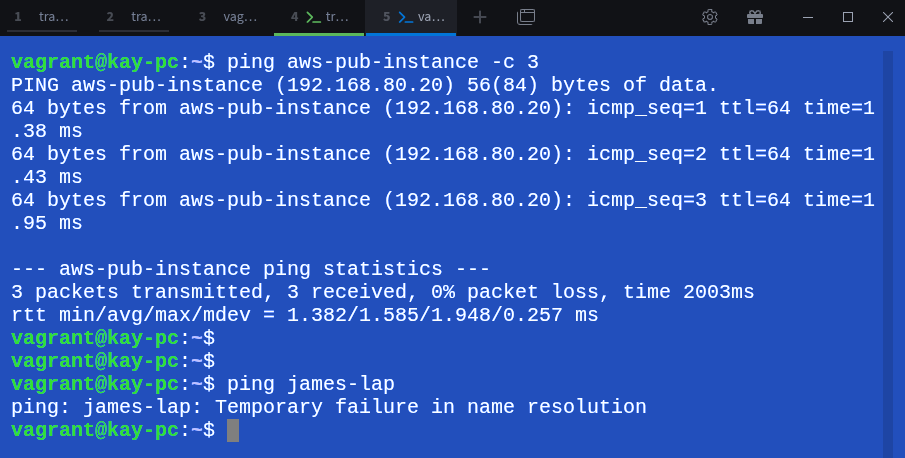
As you can see, both James and Kay can reach the aws-pub-instance, but they cannot reach each other directly. and Also just to be sure that james’s local web application is running, let’s curl it from james-lap:
$ curl localhost
Great! The web application is up and running on James’s laptop. Now, let’s set up the remote port forwarding from james-lap to aws-pub-instance.
Creating the Remote SSH Tunnel
The syntax looks similar to local port forwarding, but with the -R option and reversed order of ports:
$ ssh -N -R <remote-address>:<remote_port>:<local_address>:<local_port> user@remote_public_ssh_serverAgain we will break this down in a bit, but for now, let’s run the command on james-lap to create the remote tunnel:
$ ssh -N -R localhost:8080:localhost:80 vagrant@aws-pub-instance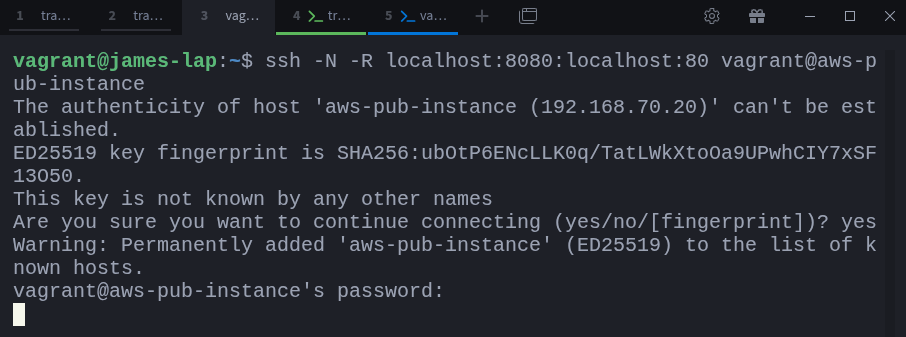
Ok, now let’s explain the syntax:
-R indicates that we are setting up remote port forwarding.
localhost:8080 specifies that we want to open port 8080 on the remote machine (aws-pub-instance). In other words, we are telling the aws-pub-instance to listen on port 8080 on its localhost ip (127.0.0.1) for incoming connections.
localhost:80 indicates that any traffic sent to localhost:8080 (on aws-pub-instance) should be forwarded to localhost port 80 on james-lap.
user@remote_public_ssh_server is the SSH server we are connecting to, which in this case is the aws-pub-instance itself.
-N indicates that we do not want to execute any commands on the remote server. We just want to set up the tunnel.
Notice again, I explicitly specified localhost for the remote port binding. This means that the aws-pub-instance will only listen for connections on its loopback interface (127.0.0.1), but you can ommit localhost and just specify 8080, and it will have the same effect. By default, SSH binds to the loopback interface (localhost) unless you specify a different ip address to listen on.
Now you understand this command, let’s run it on james-lap to establish the remote tunnel and see what happens, but this time I’m going to ommit the localhost part and just specify 8080 for the remote port binding:
$ ssh -N -R 8080:localhost:80 vagrant@aws-pub-instance
Confirming the Remote Port Binding
With our remote tunnel established, let’s confirm that the aws-pub-instance is indeed listening on port 8080:
$ vagrant aws-pub-instance
$ sudo lsof -i :8080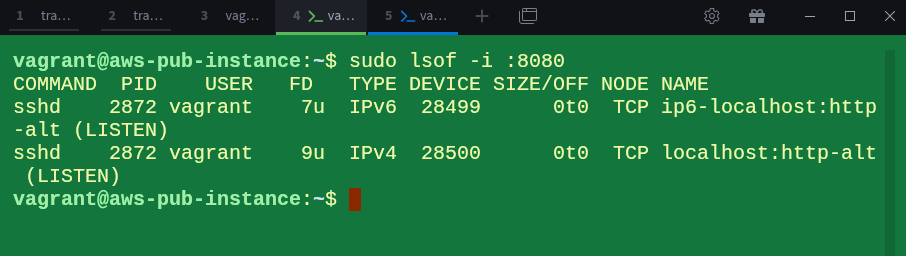
As you can see, the sshd process is listening on both IPv4 and IPv6 localhost on port 8080 (http-alt). This confirms that our remote port forwarding is active and ready to use.
NOTE
With remote port forwarding, the remote server you connect to (in this case
aws-pub-instance) is the machine that opens a port and listens for incoming connections. Any traffic it receives on that port is then sent back to your local machine.
In local port forwarding, it’s the opposite direction: your computer opens and listens on a port, and any incoming traffic is forwarded to the remote host.
So as you might have guessed by now, if we run curl on aws-pub-instance to access localhost:8080, it should forward the request back to james-lap’s localhost:80 and return the web application:
$ curl localhost:8080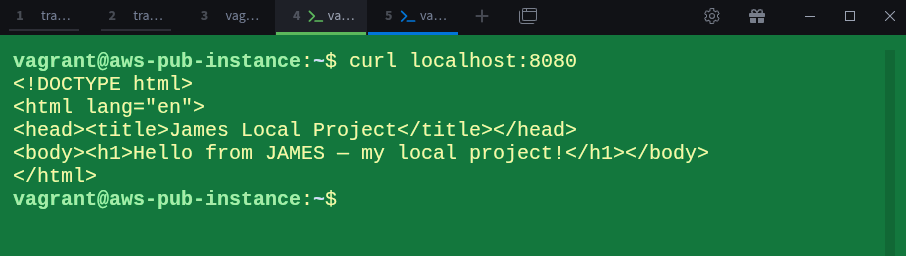
Fantastic! We have successfully accessed James’s local web application through the remote port forwarding tunnel. The traffic was forwarded from aws-pub-instance’s port 8080 to james-lap’s port 80 via the SSH connection. But remember, since we bound the remote port to localhost (127.0.0.10) on aws-pub-instance, only connections originating from aws-pub-instance itself can reach that port.
So that means kay-pc cannot access james’s local web application through the tunnel. If we try to curl localhost:8080 from kay-pc, it will fail:
$ curl --max-timeout localhost:8080
Makes sense, we cannot curl to ourself and expect to reach another machine. Ok, you might be wondering, what if we can just use the public IP or hostname of aws-pub-instance from kay-pc to reach the remote port? Well, that won’t work either because we bound the remote port to localhost (127.0.0.1) on aws-pub-instance. Let’s try it out:
$ curl --max-time 5 aws-pub-instance:8080
It didn’t work again. The reason is that by binding the remote port to localhost, we restricted access to that port to only connections originating from aws-pub-instance itself. So can safely well can just give kay access to aws-pub-instance and let her curl localhost:8080 from there to reach james’s local web application, which works, but for some reasons or security you don’t want kay to have access to the aws-pub-instance.
So what’s the solution?
As I mentioned in last part, by default SSH binds to the loopback interface (localhost) unless you specify a different ip address to listen on. So if we want kay-pc to access the remote port, we need to bind it to 0.0.0.0 (all interfaces) on aws-pub-instance or a specific ip address that kay uses to communicate with the aws public instance. This way, the remote port will be accessible from any machine that can reach aws-pub-instance, including kay-pc.
Alright, let’s terminate the existing ssh session on james-lap and re-establish the remote tunnel, this time binding the remote port to 0.0.0.0.
$ ssh -N -R 0.0.0.0:8080:localhost:80 vagrant@aws-pub-instance
With tunnel re-established, let’s confirm that the aws-pub-instance is now listening on all interfaces for port 8080:
$ sudo lsof -i :8080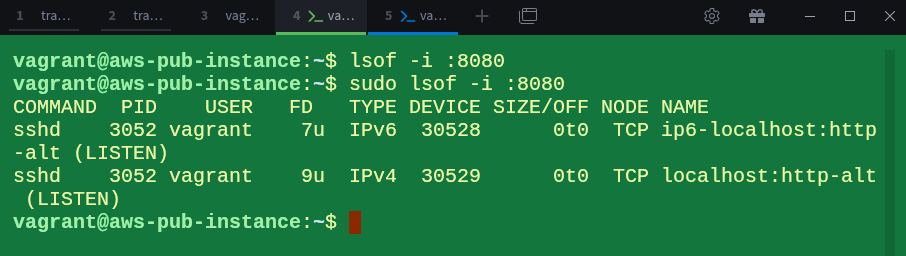
Suprisingly, the output looks the same as before, ssh is still listening on localhost:8080, so its not going to work again. There is one more step we need to do, we need to modify the sshd_config file on aws-pub-instance to allow ssh tunnels to bind to non-loopback interfaces.
Enabling GatewayPorts
By default, sshd_config has a setting called GatewayPorts which is set to no, this prevents any ssh tunnels from binding to non-loopback interfaces.
Which we can confirm by running:
$ sudo sshd -T | grep gatewayports
The default value is no, which means remote port forwarding can only bind to localhost (127.0.0.1). To allow remote port forwarding to bind to non-loopback or all interfaces, we need to set GatewayPorts to yes. If you want to bind to a specific interface, you can set GatewayPorts to clientspecified, which allows the client to specify the ip address to bind to when establishing the remote tunnel. Let me explain the difference between the two:
If gatewayports is set to yes and we run the following command on james-lap:
$ ssh -N -R 8080:localhost:80 vagrant@aws-pub-instanceThe remote port 8080 will be bound to all interfaces (0.0.0.0). So this is the same as explicitly specifying 0.0.0.0:8080.
If we try to run the following command on james-lap instead:
$ ssh -N -R 192.168.80.20:8080:localhost:80 vagrant@aws-pub-instanceNotice we put the ip kay can use to reach aws-pub-instance (192.168.80.20). But if gatewayports is set to yes, the remote port 8080 will still be bound to all interfaces (0.0.0.0). So other case you might want ssh to respect the ip address you specified when establishing the remote tunnel, in that case you would set gatewayports to clientspecified. So with gatewayports set to clientspecified, the remote port 8080 will be bound to 192.168.80.20.
With that out of the way, let’s edit the sshd_config file so that can allow remote port forwarding to bind to non-loopback interfaces. On aws-pub-instance, run the following commands:
$ echo “GatewayPorts yes” | sudo tee -a /etc/ ssh/sshd_config.d/99-overrides.conf
$ sudo systemctl restart sshd
$ sudo sshd -T | grep gatewayports
NOTE
You may notice the space in the path (/etc/ ssh/sshd_config.d/99-overrides.conf). I added it intentionally because Substack kept throwing an error whenever I wrote the full path without the space. The actual path on the system has no space.

The first command appends the GatewayPorts yes setting to a new configuration file in the sshd_config.d directory. The second command restarts the sshd service to apply the changes. The third command confirms that the GatewayPorts setting is now set to yes. You can have directly edited the main sshd_config file located at /etc /ssh/sshd_config, but its a good practice to put custom overides configurations in separate files inside the sshd_config.d directory for modularity and easier management.
Now that we have updated the sshd_config file, let’s re-establish the remote tunnel from james-lap:
$ ssh -N -R :8080:localhost:80 vagrant@aws-pub-instance
As always we confirm that the aws-pub-instance is listening on port 8080:
$ sudo lsof -i :8080
As you can see, the sshd process is now listening on all interfaces (*) on port 8080 (http-alt). This confirms that our remote port forwarding is now accessible from any machine that can reach aws-pub-instance, including kay-pc.
Accessing the Tunnel from Kay’s Machine
Finally, let’s try to access James’s local web application from kay-pc by sending a request to aws-pub-instance’s IP address on port 8080:
$ curl aws-pub-instance:8080
And just like that, we have successfully accessed James’s local web application from Kay’s computer through the remote port forwarding tunnel. The traffic was forwarded from aws-pub-instance’s port 8080 to james-lap’s port 80 via the SSH connection. Below is a diagram that shows how everything is connected together:
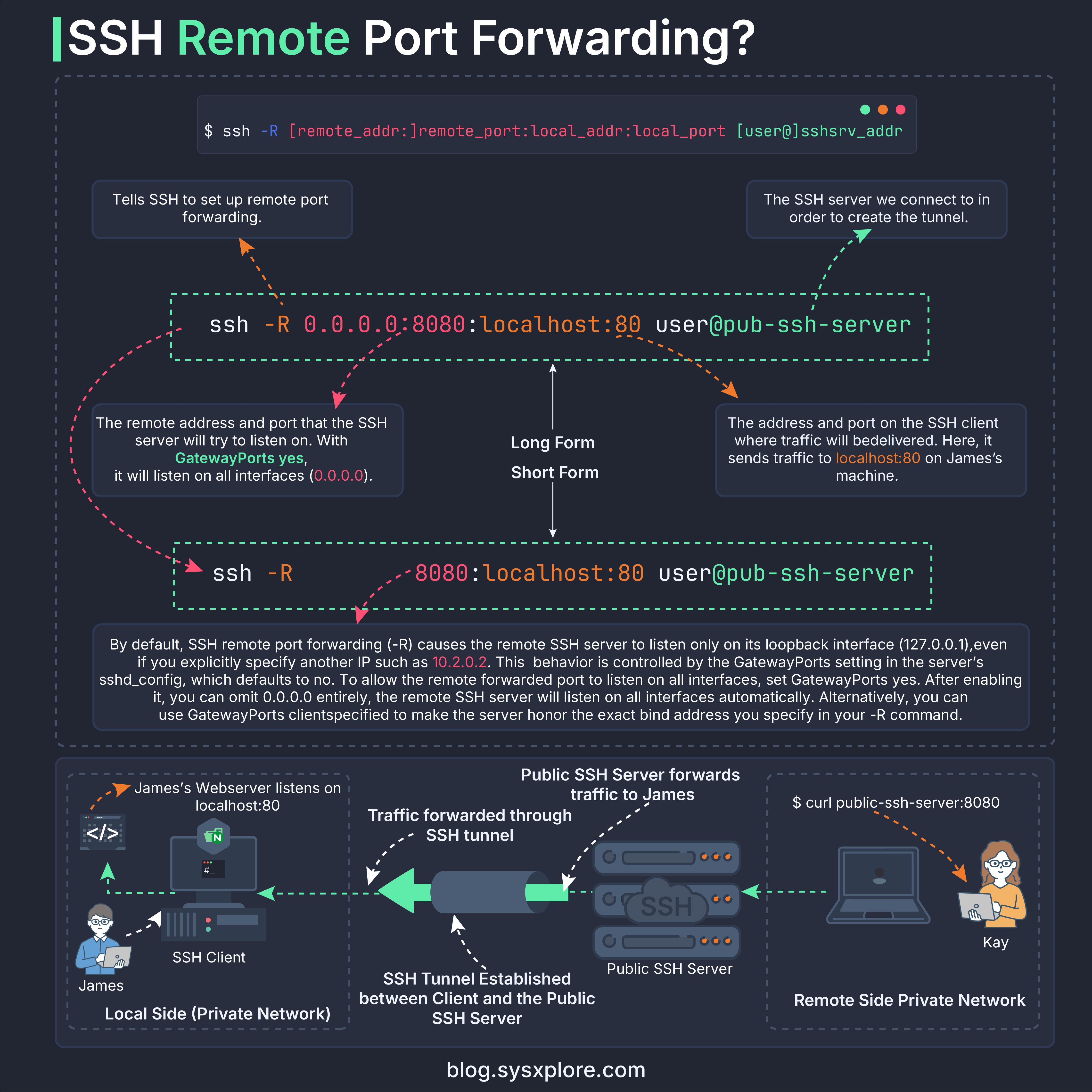
This becomes useful when your local system is behind NAT or a strict firewall that blocks incoming connections. With remote forwarding, you make your machine reachable from the outside without configuring routers or exposing anything publicly.
Looking Ahead
Remote port forwarding solves the opposite problem of local forwarding, but there’s still more SSH can do. In the next part, we’ll look at how to reach machines hidden behind another server by using SSH as a proxy through a bastion host.
Thanks for reading!
If you enjoyed this content, don’t forget to leave a comment, like ❤️ and subscribe to get more posts like this every week.